Based in London

1:49:39 PM

Friday, August 21, 2026

Based in London

1:49:39 PM

Friday, August 21, 2026

1:49:39 PM

Friday, August 21, 2026

© All Rights Reserved Portfolio MG 2026

© All Rights Reserved Portfolio MG 2026

Community Admin Messaging

Community Admin Messaging

Community Admin Messaging

A messaging feature that lets community administrators publish official, on-brand announcements inside existing chat channels clearly distinct from everyday conversation.

A messaging feature that lets community administrators publish official, on-brand announcements inside existing chat channels clearly distinct from everyday conversation.

A messaging feature that lets community administrators publish official, on-brand announcements inside existing chat channels clearly distinct from everyday conversation.

CLIENT

Medics.Academy

PROJECT

Community Admin Messaging System

TYPE

UI/UX Design · Product Design · Messaging Experience

ROLE

Lead Designer

00 / OVERVIEW

Official announcements, built into everyday chat

Official announcements, built into everyday chat

Official announcements, built into everyday chat

As part of the Medics.Academy community platform, I designed a feature that enables administrators to publish official announcements directly within existing chat channels while keeping them visually distinct from everyday conversations.

As part of the Medics.Academy community platform, I designed a feature that enables administrators to publish official announcements directly within existing chat channels while keeping them visually distinct from everyday conversations.

The challenge was to introduce an administrative communication layer without disrupting the familiarity and simplicity of the chat experience. Official messages needed to be immediately recognisable, trustworthy, and consistent with each community’s visual identity.

The challenge was to introduce an administrative communication layer without disrupting the familiarity and simplicity of the chat experience. Official messages needed to be immediately recognisable, trustworthy, and consistent with each community’s visual identity.

01 / THE CHALLENGE

Important updates were getting lost in everyday conversation

Important updates were getting lost in everyday conversation

Important updates were getting lost in everyday conversation

01

A distinct official identity

Clearly distinguish official announcements from regular, everyday messages.

02

Built for many brands

Support multiple community brands and personas, and scale to future products and organisations.

03

Familiar and simple

Preserve the simplicity of the existing messaging interface.

02 / THE SOLUTION

A lightweight flow that turns a message into an announcement

A lightweight flow that turns a message into an announcement

A lightweight flow that turns a message into an announcement

01 / SEND AS

Publish through a trusted organisational identity

Publish through a trusted organisational identity

Administrators select a sender persona, choose a branded visual style, preview the selected identity, then publish directly into the conversation, without interrupting the chat flow.

ADMIN TEAM

EVENTS TEAM

02 / BRANDED STYLING

A recognisable identity for every announcement

A recognisable identity for every announcement

Each announcement combines a branded illustration, organisation identity, and dedicated message styling, so users recognise official communications instantly while the chat experience stays cohesive.

03 / SCALABLE SYSTEM

An illustration system built to scale

An illustration system built to scale

The illustration system was designed as a scalable framework, letting different communities and products introduce their own visual language without changing the interaction model.

04 / SEND AS FLOW
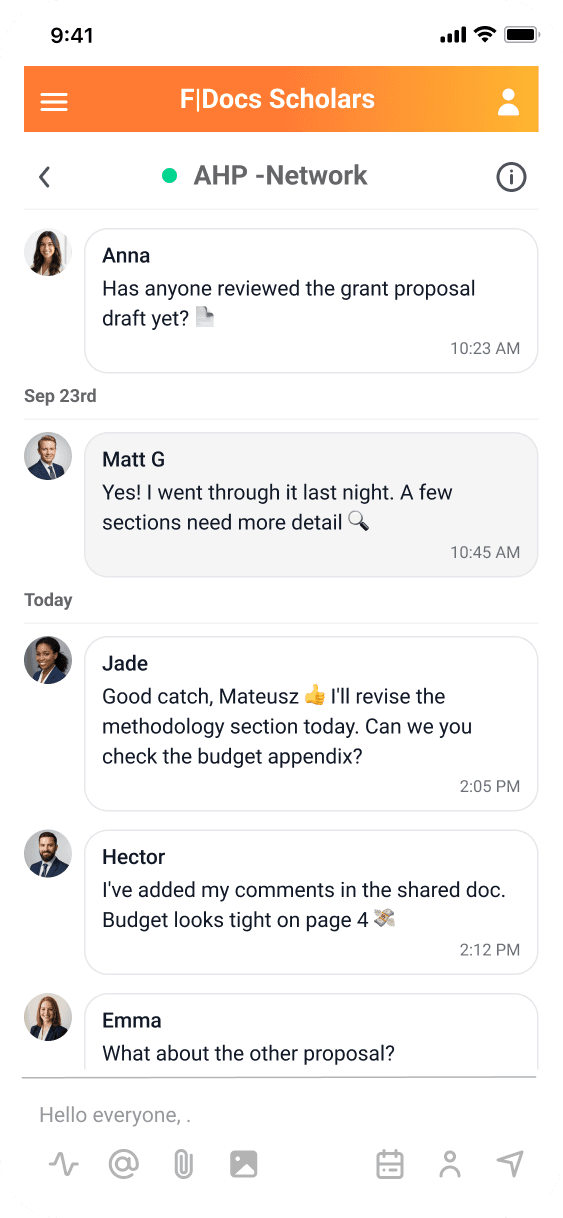
Sending an announcement, step by step

Sending an announcement, step by step

Sending an announcement, step by step

The five steps a member follows to publish a message as a Community Admin — from writing the message to the branded announcement appearing in the chat.

The five steps a member follows to publish a message as a Community Admin — from writing the message to the branded announcement appearing in the chat.

  • 01

    Chat

    Start by writing your message. You can send it normally or choose to publish it as a Community Admin announcement.

  • 02

    Send As

    Choose the sender persona. This determines how the message will appear in the chat.

  • 03

    Message Appearance

    Select an illustration style to visually distinguish the announcement and reinforce the brand.

  • 04

    Ready to Send

    The selected persona is shown above the message, confirming it will be sent as an official Community Admin announcement.

  • 05

    Published Message

    The message appears in the chat with the selected branding, making official announcements easy to identify.

  • 01

    Chat

    Start by writing your message. You can send it normally or choose to publish it as a Community Admin announcement.

  • 02

    Send As

    Choose the sender persona. This determines how the message will appear in the chat.

  • 03

    Message Appearance

    Select an illustration style to visually distinguish the announcement and reinforce the brand.

  • 04

    Ready to Send

    The selected persona is shown above the message, confirming it will be sent as an official Community Admin announcement.

  • 05

    Published Message

    The message appears in the chat with the selected branding, making official announcements easy to identify.

  • 01

    Chat

    Start by writing your message. You can send it normally or choose to publish it as a Community Admin announcement.

  • 02

    Send As

    Choose the sender persona. This determines how the message will appear in the chat.

  • 03

    Message Appearance

    Select an illustration style to visually distinguish the announcement and reinforce the brand.

  • 04

    Ready to Send

    The selected persona is shown above the message, confirming it will be sent as an official Community Admin announcement.

  • 05

    Published Message

    The message appears in the chat with the selected branding, making official announcements easy to identify.

  • 01

    Chat

    Start by writing your message. You can send it normally or choose to publish it as a Community Admin announcement.

  • 02

    Send As

    Choose the sender persona. This determines how the message will appear in the chat.

  • 03

    Message Appearance

    Select an illustration style to visually distinguish the announcement and reinforce the brand.

  • 04

    Ready to Send

    The selected persona is shown above the message, confirming it will be sent as an official Community Admin announcement.

  • 05

    Published Message

    The message appears in the chat with the selected branding, making official announcements easy to identify.

05 / INTERACTIVE PROTOTYPE

Try the community chat experience

Try the community chat experience

Try the community chat experience

This is a quick AI prototype, ui is not accurate, but it was used to communicated with the dev team, this in combination with Figma designs did the job.

This is a quick AI prototype, ui is not accurate, but it was used to communicated with the dev team, this in combination with Figma designs did the job.

06 / OUTCOME

A clear line between conversation and official communication

The feature introduced a clear distinction between user conversations and official communications while preserving the natural flow of the chat interface.

The modular architecture also established a scalable foundation for branded announcements across different communities within the platform.

MY ROLE

Product Design / UX Research / User Flow Design / UI Design / Prototyping / Stakeholder Collaboration / Usability Testing

Product Design / UX Research / User Flow Design / UI Design / Prototyping / Stakeholder Collaboration / Usability Testing

TOOLS

Figma / Miro / Codex / Jira

Figma / Miro / Codex / Jira